
Tutorial: Brave Browser
A first step to setup a more privacy respecting digital interaction.

This tutorial will help you embark on a small but significant step in improving your privacy.
Switching to a privacy focused Browser and Search Engine.
Brave, comes directly out of the box as an already fairly secure and private browser.
It lets you also harden it. But that is another tutorial for another day.
First open your laptop/PCs browser. In my case on this machine, I am using google chrome.
Step 1.
Search for BRAVE BROWSER
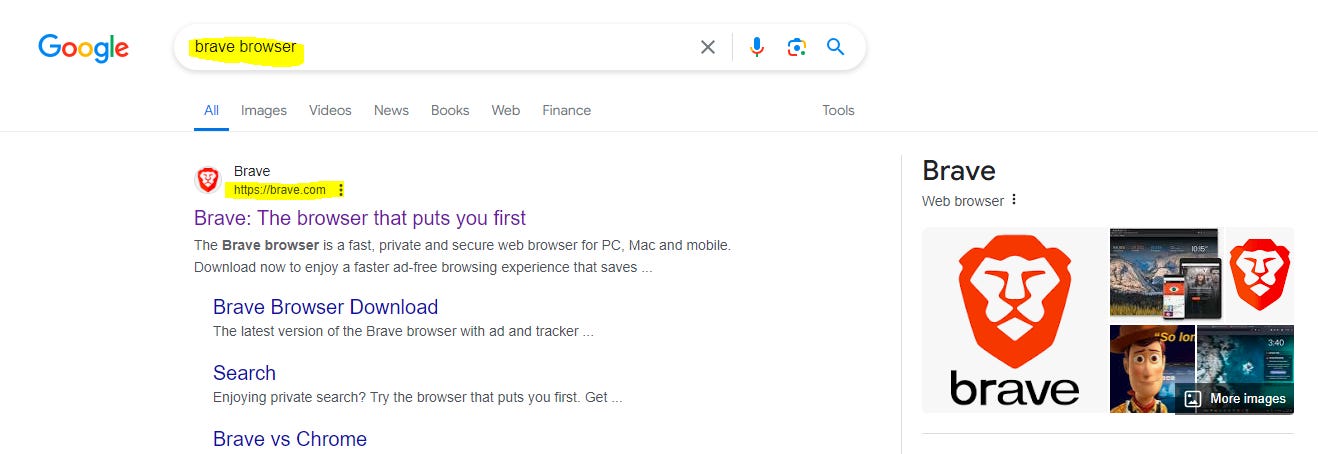
Step 2.
Open the Brave.com website
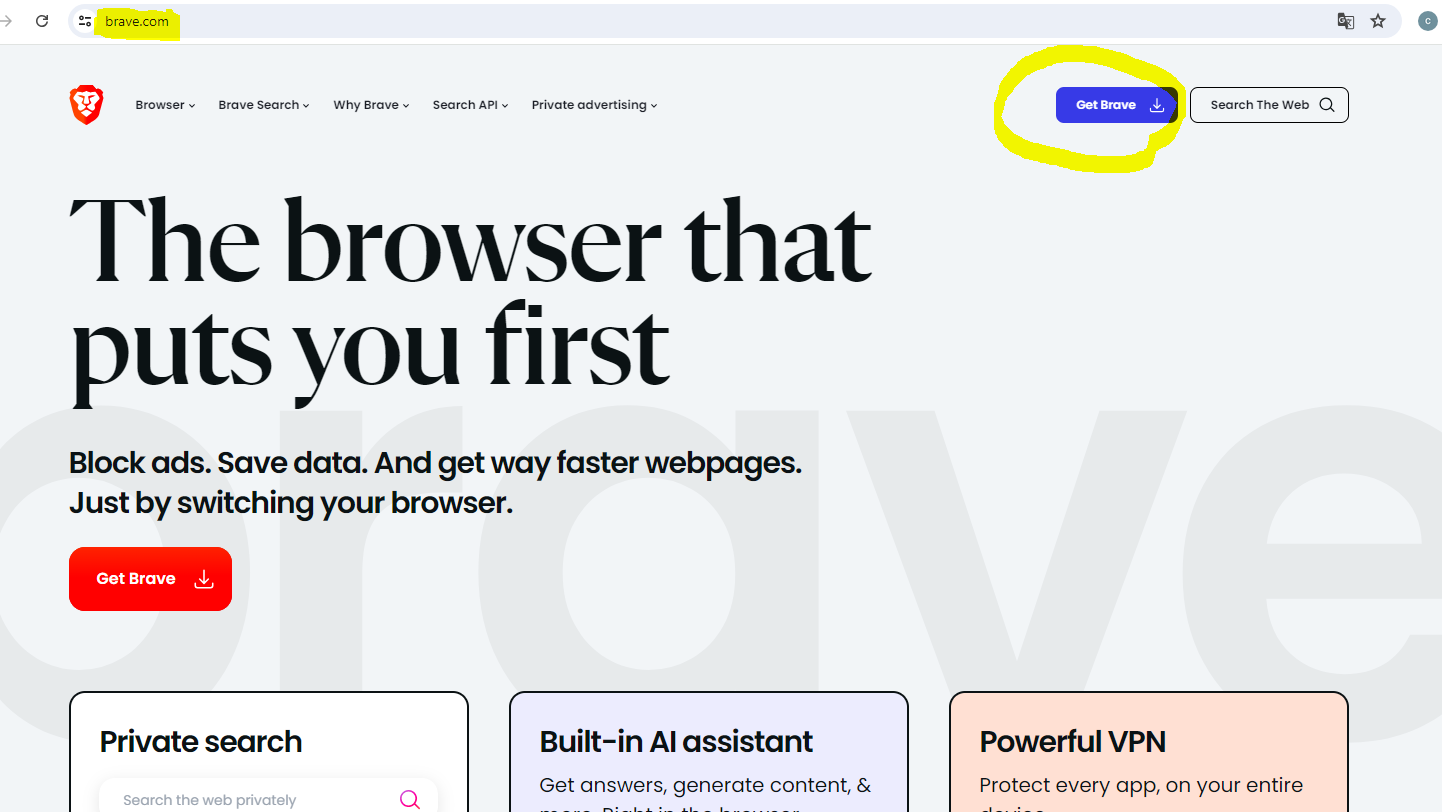
Step 3.
Go to the GET BRAVE button an download the Browser.
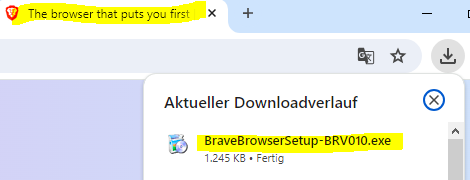
It should download instantly as a .exe, you can check the download activity here ( the arrow with a bracket):
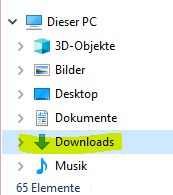
or check your down load folder:
Step 4.
Next click the .exe to install the browser on your machine.
On windows, it will ask you if you a sure you want to make changes. You can accept.
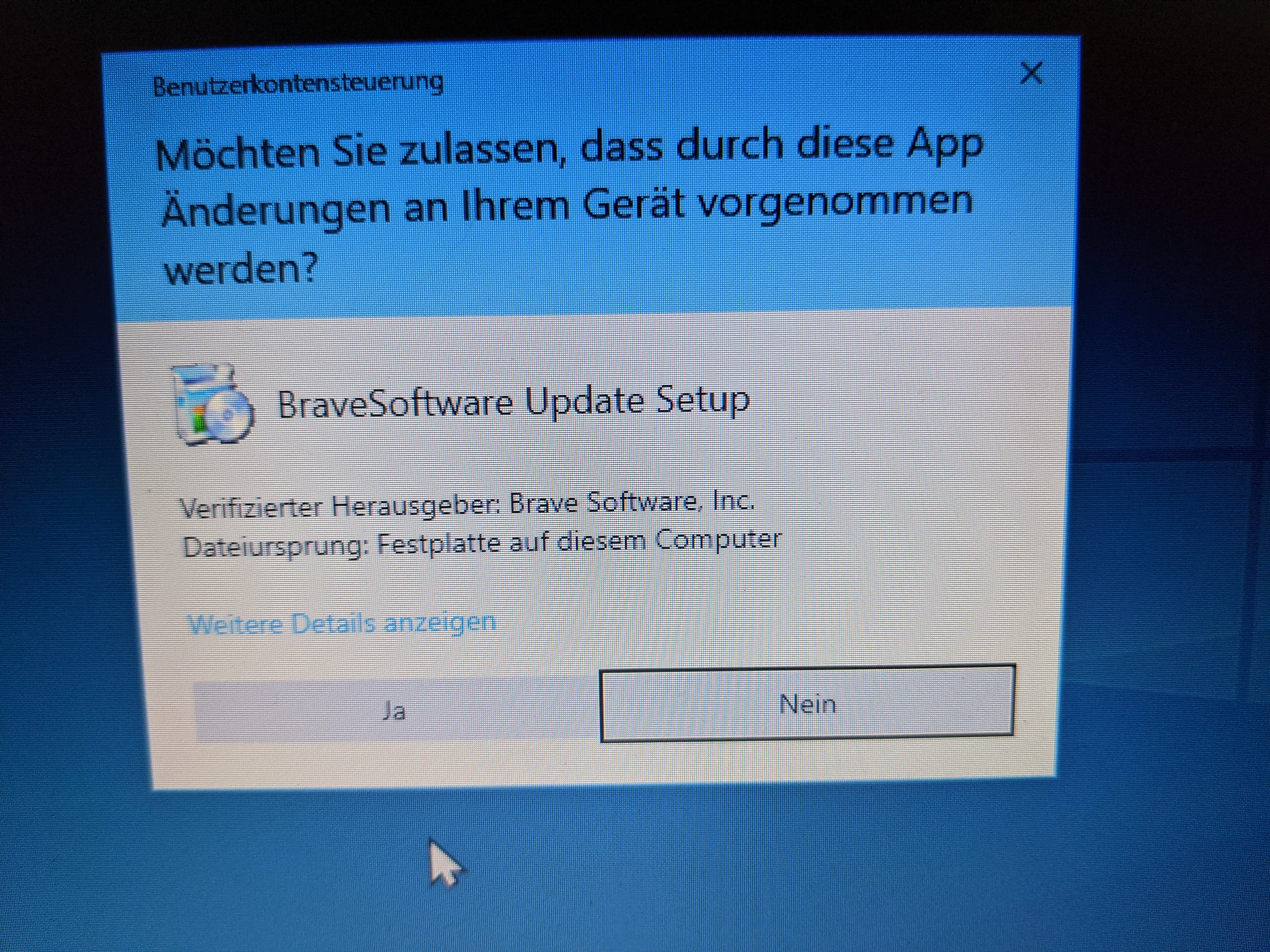
Step 5.
It will know show the installation progress:
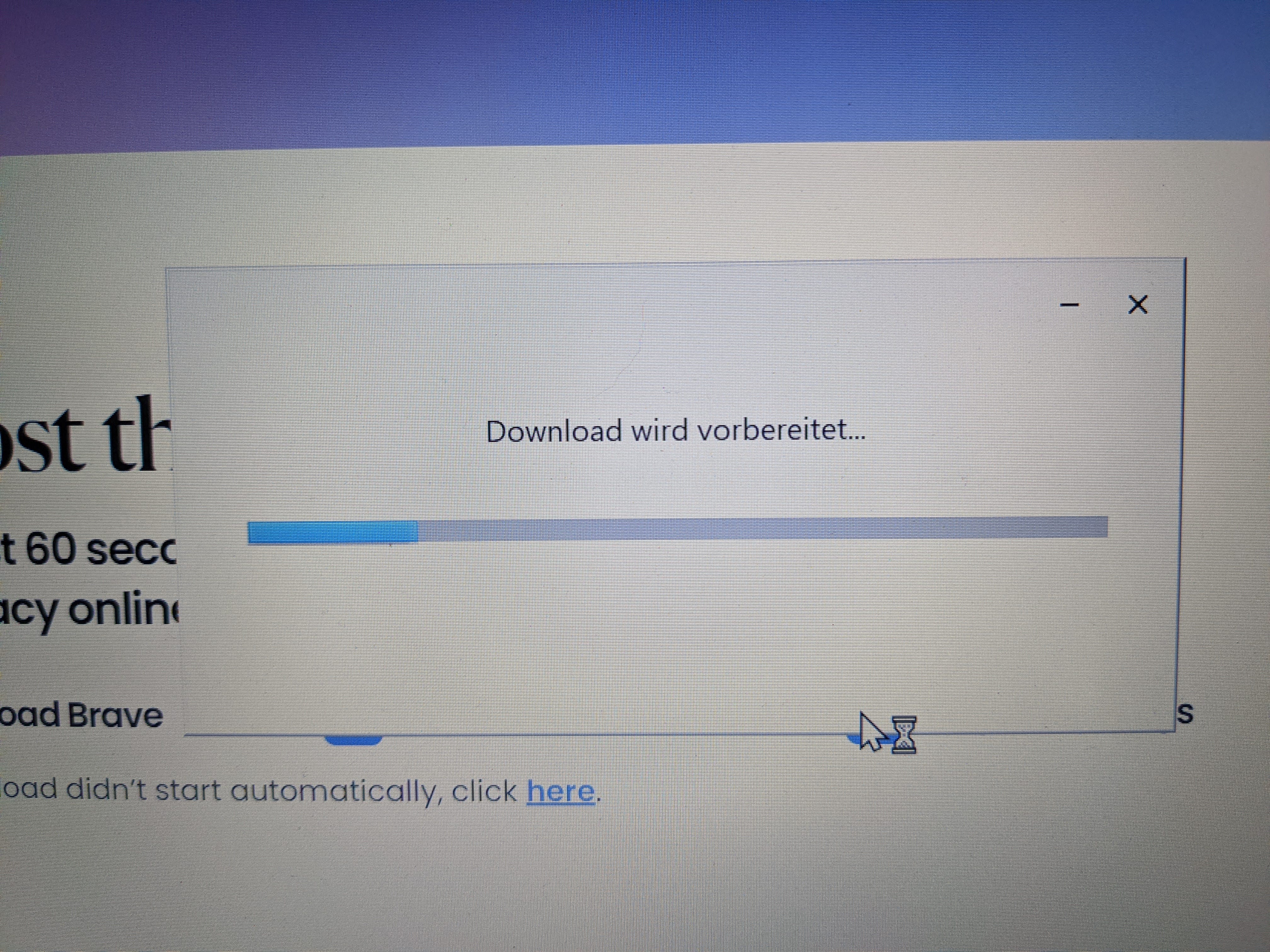
Step 6.
It should create a Icon Desktop shortcut and open.
Here we will also set Brave as the default Browser.
You should have the button asking you if you want to do that.
Go ahead and accep.
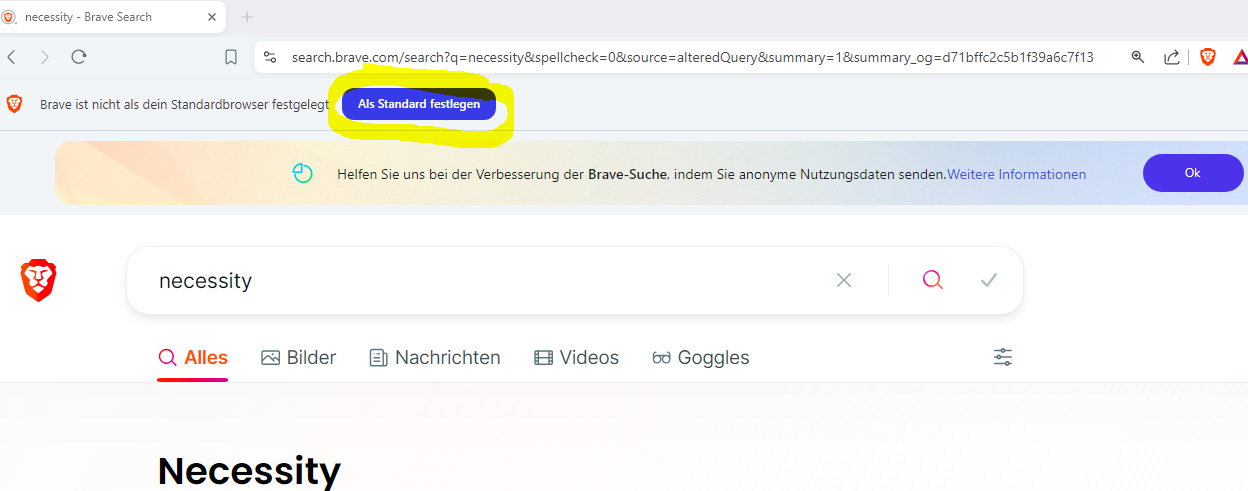
Step 7.
Lets check and select which Search Engine the brave Browser should use. You can keep it the standard Brave, Its really good, but you might also just want to compare or test drive another.
You should get same results, but some engines suppress more then others.
For this, go to the right hand side on the hamburger menu on the top right:
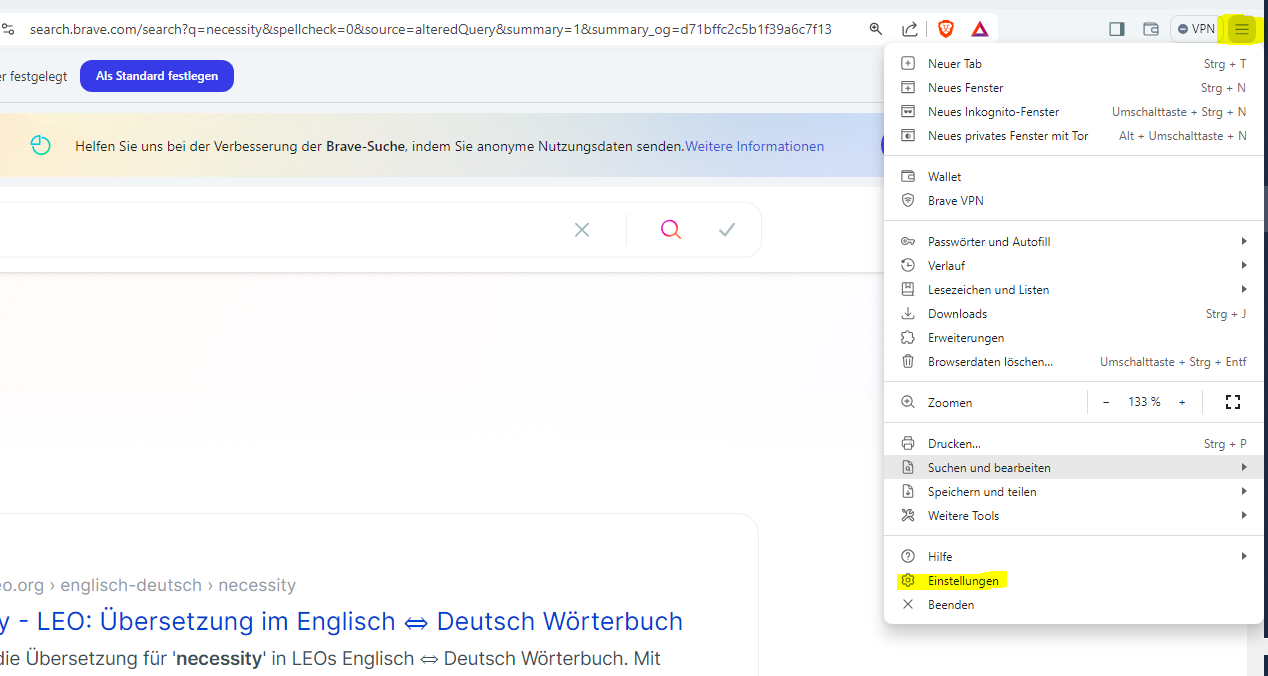
In the menu that unfolds, go to settings.
Step 8.
Then go to search options, located on the left side menu:
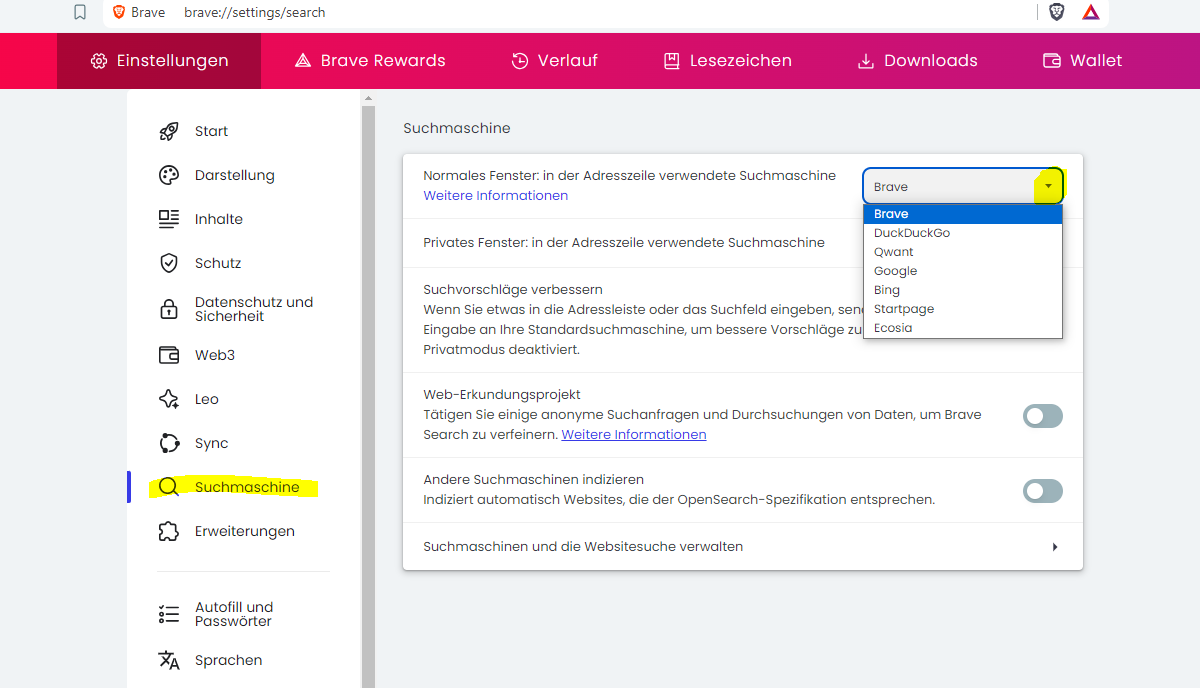
if you then go to the first entry field area, on the little rectangle, it will unfold the standard options.
Brave is already set. Startpage is a fork of google, with les tracking. Also a good choice.
THATS IT!
you installed a great browser and now can search the web!